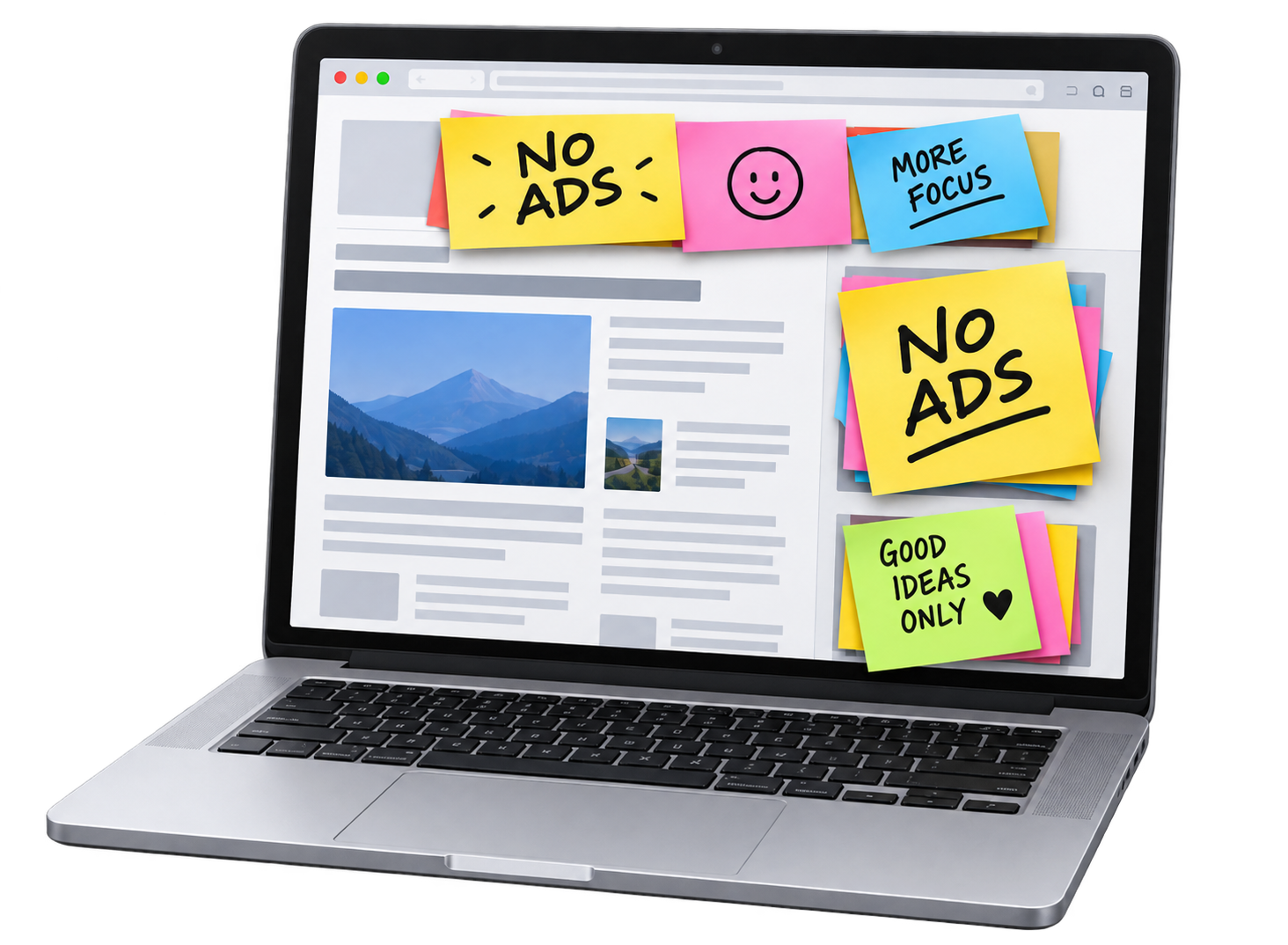
No Ads. Just Tasks.

Less ads.
More room
for your life.

Turn ad spaces into colorful sticky notes. Your tasks, your ideas, your little reminders — right where the noise used to be.

Add to Chrome
A laptop with bright sticky notes replacing ad banners, isolated on white.

See the difference.

The news stays. The ads make room for you.

◈   thedaily.example / today
THE DAILY /
World   Business   Culture   Life

Finding a little more space for everyday life

From a quiet morning to a walk outside, small moments are changing how we spend our days.

The Daily · 5 min read

A fresh perspective on the familiar

Good ideas don’t always start with big changes. Sometimes they begin with making a little room for what matters.

01 / MAKE SPACE

A banner becomes a note.

The extension finds ad banners and replaces them with colorful sticky notes.

02 / MAKE IT YOURS

A thought becomes a task.

Click a note and write it down. Shopping, work, travel — give each theme its own color.

03 / KEEP IT CLOSE

A new page. The same plans.

Your notes follow you from site to site, ready for the next little thing you want to do.

A few things you might wonder.

How can I remove ad banners while browsing in Chrome?

Install No Ads. Just Tasks. from the Chrome Web Store. It finds ad banners on the pages you visit and replaces them with colorful sticky notes, giving you space for tasks and reminders where those banners used to be.

Can I replace website ads with sticky notes?

Yes. No Ads. Just Tasks. turns the ad banners it finds into sticky notes. Click a note to add a task or reminder, then use its checkbox to mark the task as done.

What’s the difference between No Ads. Just Tasks. and a regular ad blocker?

A regular ad blocker focuses on blocking ads. No Ads. Just Tasks. focuses on turning advertising space into something useful: sticky notes for your tasks and ideas. It replaces the banners it finds rather than simply leaving their space empty; it does not promise to block every type of ad.

What is No Ads. Just Tasks.?

No Ads. Just Tasks. is a Chrome extension that replaces ad banners with colorful sticky notes for tasks and reminders.

How do I install it?

Click Add to Chrome on this page to open the official Chrome Web Store listing. Follow the installation steps in Chrome.

How do I add and complete a task?

Click a sticky note to write a task. Use its checkbox to mark the task as completed.

Will my tasks stay when I visit another page?

Yes. Your notes stay with you when you refresh a page or open another site, appearing in the next ad slot the extension replaces.

Can I organize and export my tasks?

Use colors for themes such as shopping, health, travel, and work. You can export open and completed tasks together in one file.

Does the extension support different languages?

The extension interface follows your browser language. This promotional website is in English.

Where can I read about privacy and report a problem?

Read the privacy policy for the developer’s published information about data handling. To report a bug or suggest a feature, email maxim4eg@gmail.com.

Your browser.
A little more you.

Make room for what you actually want to do.

Add to Chrome

A small project. An open inbox.

Have an idea or found a bug? I’d love to hear from you.